
Why Use Betaflight OSD? A Game-Changer for FPV Pilots
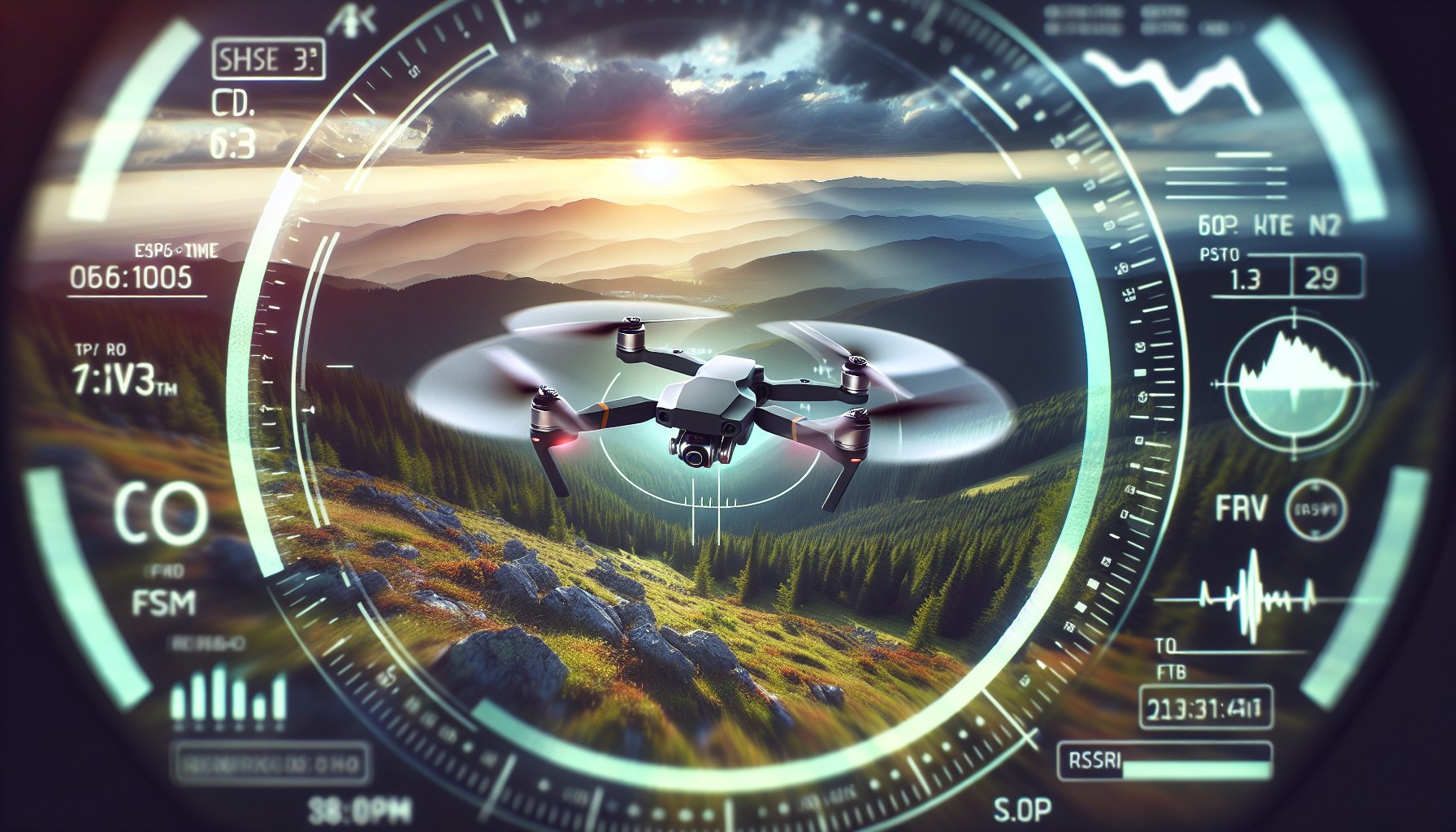
If you’re diving into the world of FPV drones, the Betaflight OSD setup guide is your key to unlocking a seamless flying experience. On-Screen Display (OSD) integrates critical flight data directly into your goggles or monitor, providing real-time insights without distracting you from the action. Think battery voltage, flight time, and even GPS coordinates—all at a glance. For hobbyists and racers alike, OSD is indispensable for monitoring drone health mid-flight, especially during intense freestyle sessions or competitive races. Without it, you’re flying blind to vital stats that could prevent a crash or help you push limits safely. This guide walks you through setting up Betaflight OSD to ensure your display is optimized for your specific needs.
Betaflight, a leading flight controller firmware for FPV drones, offers robust OSD customization. Unlike basic firmware, it lets you tailor what data appears, where it shows up, and how it’s presented. Whether you’re a beginner tweaking a basic quad or an advanced pilot fine-tuning for a race, mastering this setup elevates your control. It’s not just about slapping data on the screen; it’s about creating a heads-up display that works intuitively with your flying style. From voltage alerts to RSSI (Received Signal Strength Indicator) for connection health, a well-configured OSD can save your drone from disaster. Let’s break down the process to get you started with confidence.
Step-by-Step Betaflight OSD Setup Guide for Beginners
Getting started with the Betaflight OSD setup guide begins with connecting your flight controller to your computer. Download the Betaflight Configurator from the official GitHub page or your preferred app store. Plug your drone’s flight controller into your PC via USB, ensuring the battery is disconnected for safety. Open the configurator, select the correct port, and connect. Head to the ‘OSD’ tab in the left-hand menu. Here, you’ll see a preview of your display layout. Activate OSD by toggling the feature on, assuming your hardware supports it—most modern flight controllers like F4 or F7 boards do. If your video transmitter or camera isn’t wired correctly, you won’t see the overlay, so double-check connections before proceeding.
Next, customize the elements you want displayed. Betaflight allows you to drag and drop data fields like battery voltage, flight mode, and timer onto the grid representing your screen. Prioritize essentials—voltage to monitor power levels and RSSI to track signal strength. For racing, add lap timers; for freestyle, consider altitude or GPS if equipped. Adjust the position to avoid cluttering your central view—keep critical info on the edges. Save your settings by clicking ‘Save and Reboot’ in the configurator. Test the display through your goggles or monitor to ensure everything renders clearly. If text overlaps or appears fuzzy, tweak the layout or check your VTX (video transmitter) settings for interference.

Hardware Requirements for Betaflight OSD
Before diving into configuration, ensure your setup supports Betaflight OSD. You’ll need a compatible flight controller—popular options include Betaflight-supported boards like the Matek H743 or iFlight F722. Your video system must also integrate OSD, meaning a VTX and camera wired through the flight controller’s OSD pins. Some older or budget boards lack dedicated OSD chips, so check your hardware specs. If your controller doesn’t support native OSD, you might need an external module like the AKK or Eachine VTX with built-in display features. Also, confirm your goggles or monitor can render the overlay—most analog and digital FPV systems work fine, but test compatibility. Without the right gear, even the best setup won’t display data.
Common Betaflight OSD Settings to Optimize Your Display
When following this Betaflight OSD setup guide, knowing the most useful settings can transform your flying. Start with battery-related metrics: enable ‘Main Batt Voltage’ to track power levels and set ‘Battery Low Warning’ to alert you before a crash. ‘RSSI Value’ is crucial for monitoring signal strength—position it prominently to avoid losing connection mid-flight. For pilots using GPS, enable ‘GPS Speed’ and ‘GPS Sats’ to track location and velocity, ideal for long-range flights. Timers are handy too—‘Total Armed Time’ helps log flight duration for battery wear analysis. Adjust font size and style if your display looks cramped; Betaflight offers multiple options to enhance readability during high-speed maneuvers.
Advanced users might explore custom warnings or artificial horizon displays. The horizon indicator, if supported by your hardware, overlays a visual guide to keep your drone level—great for beginners. Set custom text fields if you want specific alerts, like a reminder to land after a set time. Be cautious not to overload your screen; too many elements can distract from flying. Test different configurations during short flights to find a balance. If you’re into racing, prioritize lap counters and minimal data to maintain focus. Save each tweak in the configurator and reboot to apply changes, ensuring your OSD reflects real-time adjustments without glitches.

Frequently Asked Questions
What are common OSD settings?
Common OSD settings in Betaflight include battery voltage to monitor power levels, RSSI for signal strength, and flight timers to track duration. Other popular options are flight mode indicators, GPS data like speed and satellite count, and warnings for low battery or signal loss. Pilots often customize these based on their needs—racers prioritize minimal data like lap timers, while freestyle pilots might add altitude or horizon indicators. Position critical info on screen edges to avoid blocking your view. Adjust readability by tweaking font size or style in the Betaflight Configurator for optimal clarity during flights.
What programming language does Betaflight use?
Betaflight is primarily written in C, a low-level programming language ideal for embedded systems like flight controllers. C allows developers to optimize performance and memory usage, critical for real-time drone operations. The firmware’s codebase, hosted on GitHub, is open-source, enabling community contributions and custom modifications. While end-users don’t need to code to use Betaflight or configure OSD, understanding this foundation can help advanced hobbyists tweak firmware for specific needs. Tools like the Betaflight Configurator provide a user-friendly interface, abstracting the coding layer for most pilots.
What are the features of Betaflight OSD?
Betaflight OSD offers a range of features for FPV pilots, including real-time data display of battery voltage, RSSI, flight modes, and timers. It supports GPS integration for speed, altitude, and satellite data, ideal for long-range flights. Customizable layouts let you drag and drop elements on-screen, while warnings for low battery or signal loss enhance safety. Advanced options include artificial horizon indicators and custom text alerts. With support for various font styles and sizes, Betaflight OSD ensures readability under diverse flying conditions, making it a versatile tool for both racing and freestyle.
What are common OSD problems?
Common Betaflight OSD issues include no display output, often due to incorrect wiring between the flight controller, VTX, and camera. Fuzzy or unreadable text can stem from interference or mismatched video settings—check your VTX frequency and camera compatibility. Overlapping data happens when too many elements are enabled; simplify your layout in the configurator. Hardware limitations on older boards may prevent OSD from working natively, requiring external modules. Lastly, ensure firmware is updated, as outdated Betaflight versions might glitch. Test after each tweak to isolate and fix problems.
Ready to Perfect Your FPV Setup?
Now that you’ve got the hang of configuring your Betaflight OSD, why not take your FPV game further? Whether you’re troubleshooting a tricky display issue or looking for personalized advice on optimizing your drone for racing or freestyle, we’re here to help. Head over to our contact page to connect with our team for expert tips and tailored recommendations. Let’s get your quad flying at its best!